

วิธีเริ่มต้นใช้งาน API - การนำเข้าชุดค่าผสมแบบกลุ่ม 02
ขั้นตอนแรก
เราแนะนำให้ศึกษาบทช่วยสอน วิธีเริ่มต้นใช้งาน API - พื้นฐาน 01 ซึ่งจะสอนเกี่ยวกับ API และวิธีการตั้งค่าสภาพแวดล้อม
ไฟล์ Connection
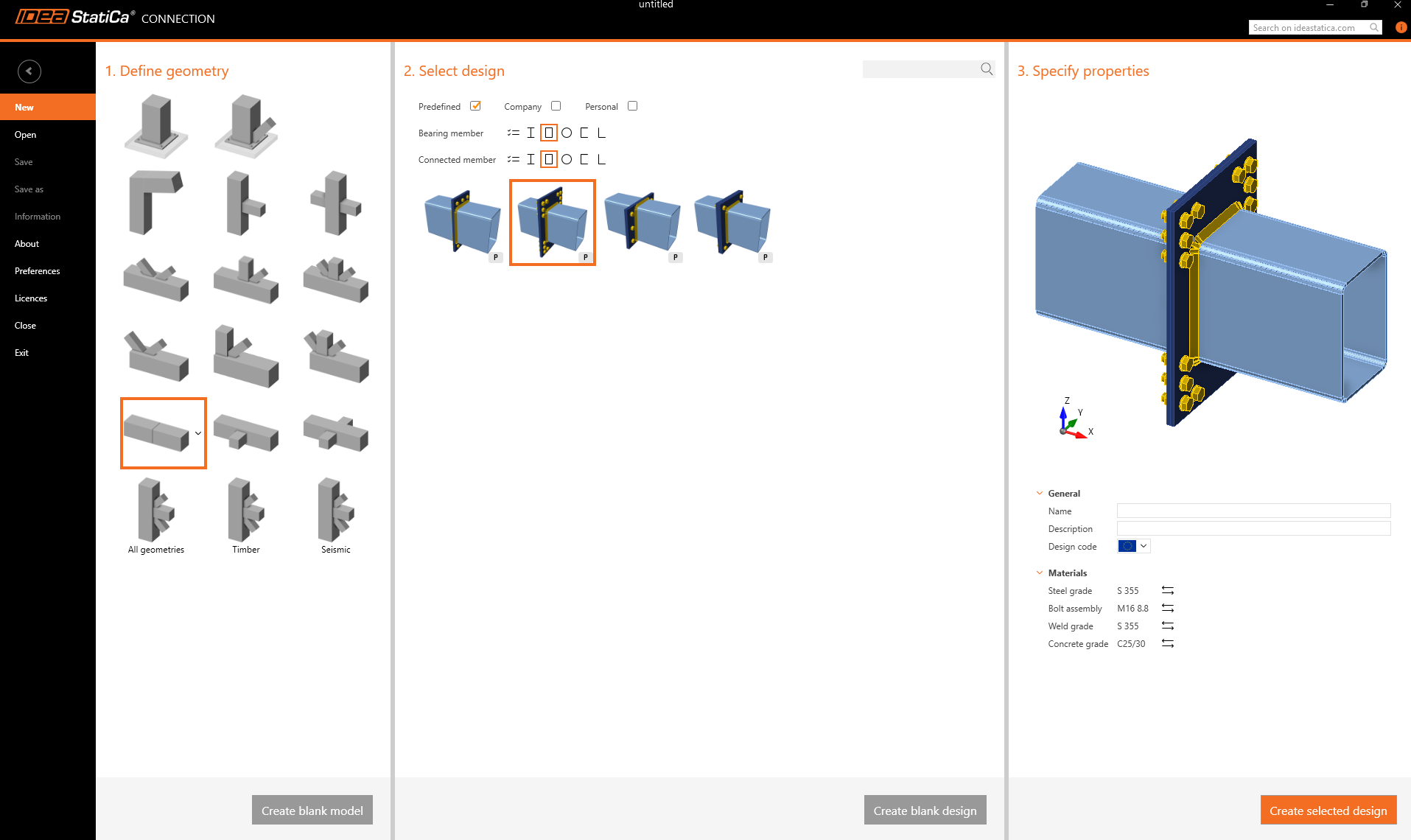
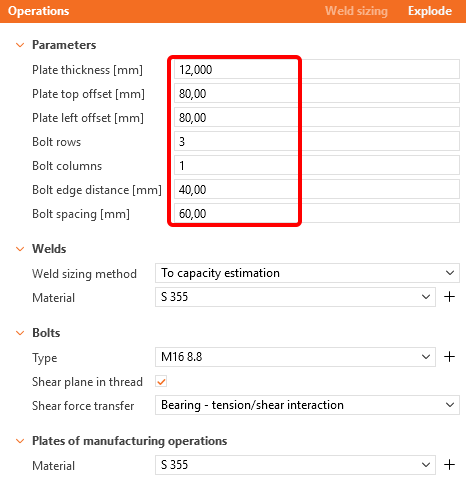
ขั้นแรก สร้างจุดต่อของหน้าตัดกลวงสองชิ้น RHS 300/200/8 และเปลี่ยนพารามิเตอร์ตามรูปภาพต่อไปนี้
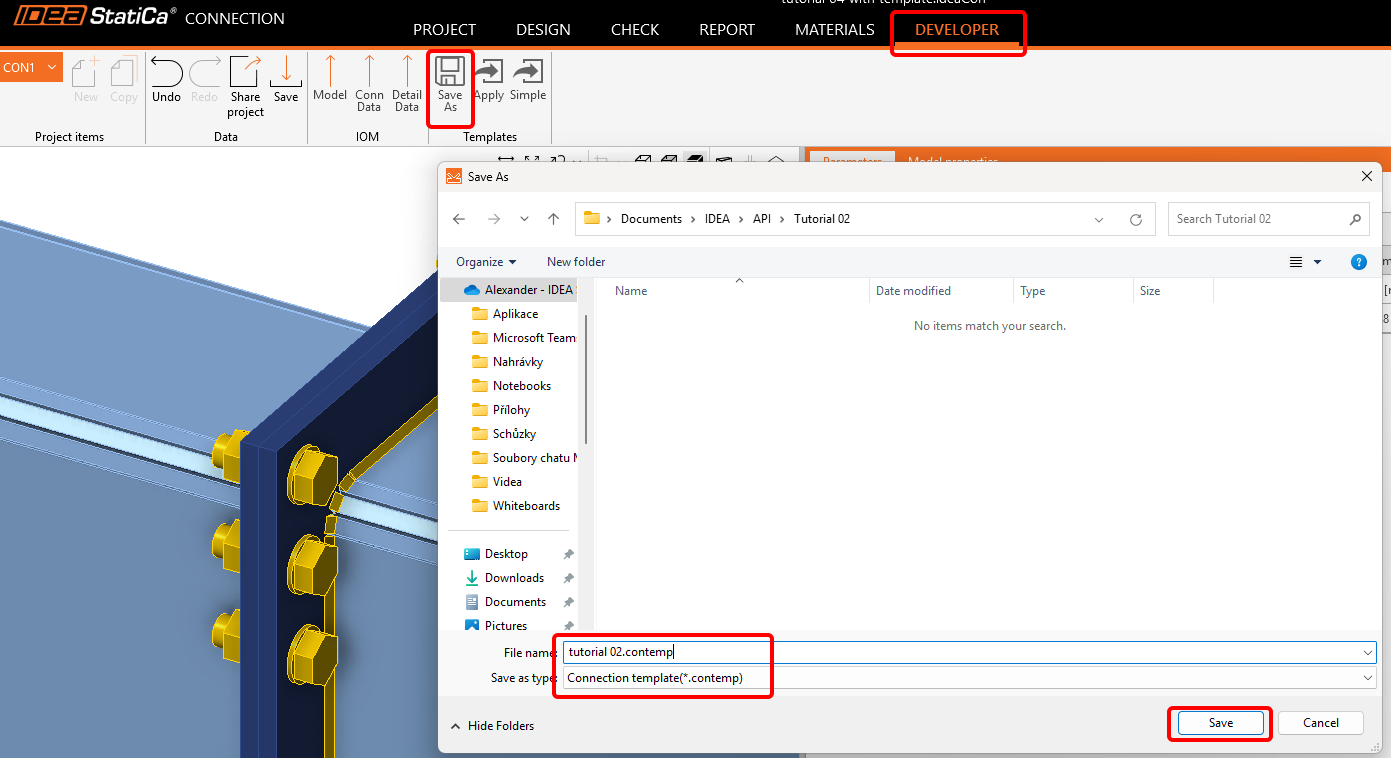
จากนั้น ไปที่แท็บ Developer และบันทึกเป็นแม่แบบโดยใช้ชื่อ tutorial 02.contemp เราจะใช้ในบทช่วยสอนถัดไป
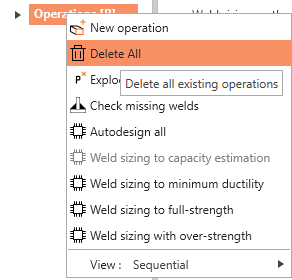
กลับไปที่แท็บ Design คลิกขวาที่ Operations / Delete All และบันทึกไฟล์เปล่านี้ในชื่อ tutorial 02 - empty.ideaCon
ตาราง Excel สำหรับชุดแรงกระทำ
ในขั้นตอนถัดไป ให้เตรียมตาราง Excel ที่มีแรงกระทำที่ต้องการนำเข้าสู่ไฟล์ .ideaCon คุณสามารถดาวน์โหลดได้ที่ด้านล่างของหน้านี้
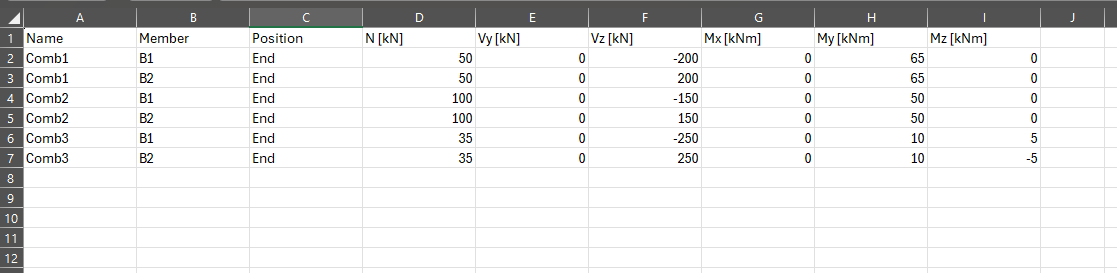
โปรดใช้ชื่อคอลัมน์ที่ถูกต้องตามที่ใช้ในสคริปต์ Python
Python client
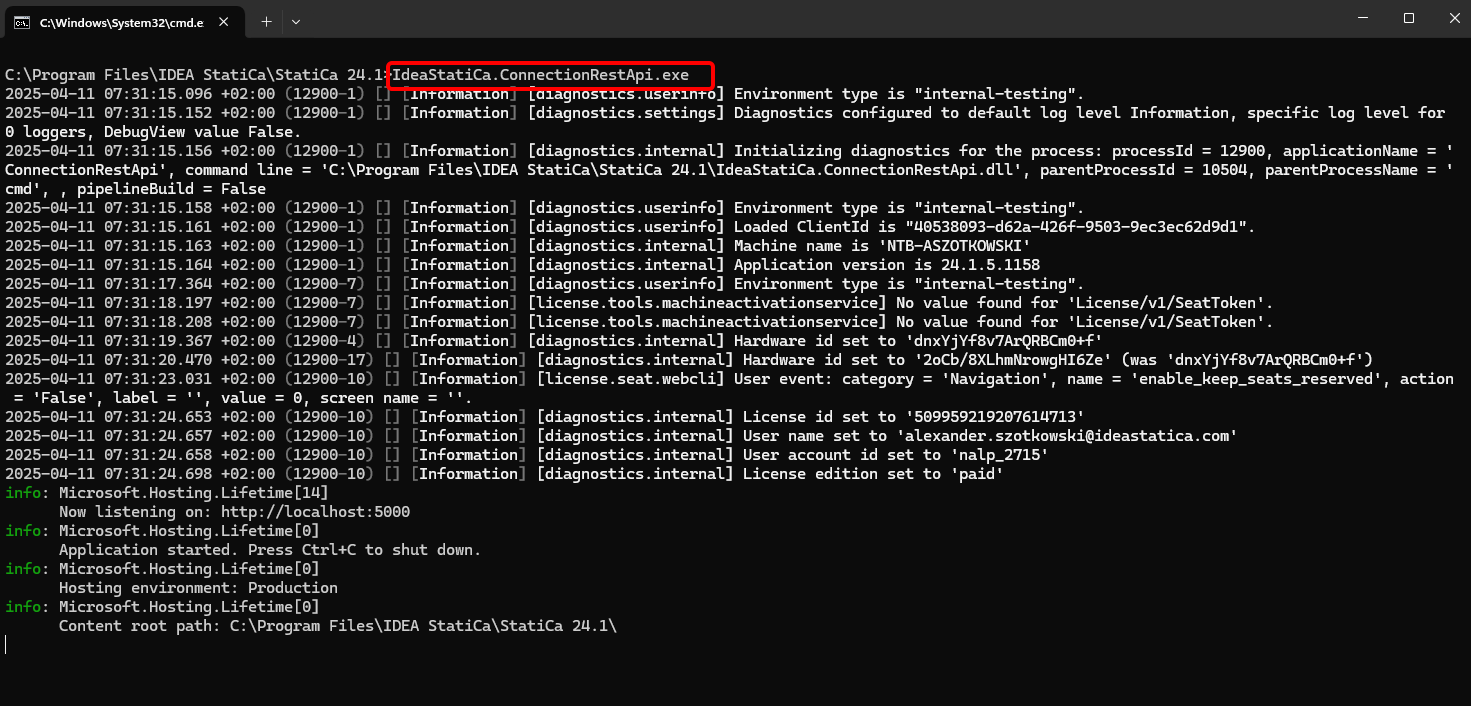
รัน "IdeaStatiCa.ConnectionRestApi.exe" ใน CMD ภายในโฟลเดอร์ IDEA StatiCa ที่เหมาะสม และเปิดเครื่องมือ IDE ที่คุณต้องการ
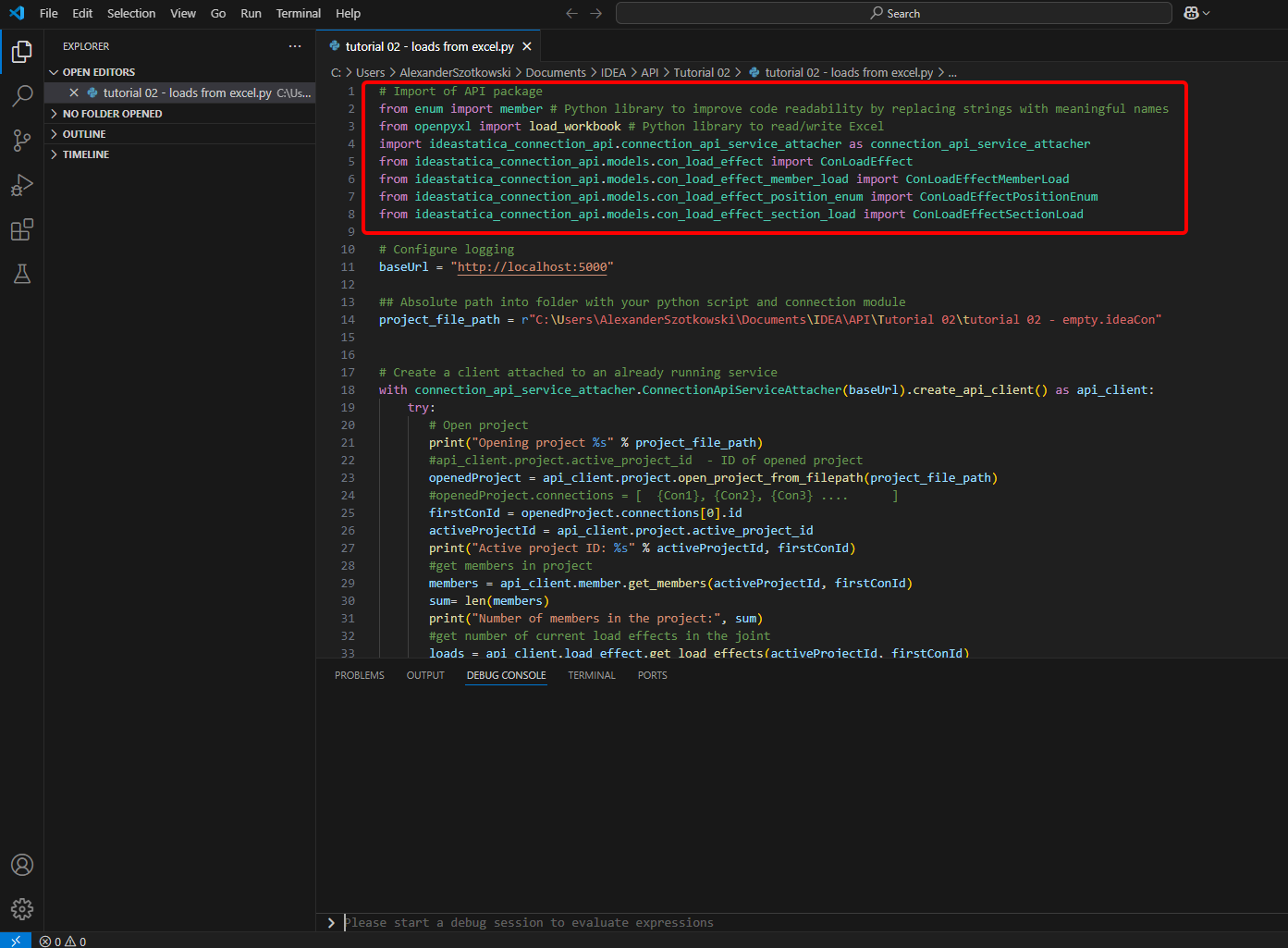
- สร้างไฟล์ใหม่และนำเข้าแพ็กเกจ ที่จะเปิดใช้งานการคำนวณและเชื่อมต่อกับ localhost URL
Source code:
## Import of API package
from enum import member # Python library to improve code readability by replacing strings with meaningful names
from openpyxl import load_workbook # Python library to read/write Excel
import ideastatica_connection_api.connection_api_service_attacher as connection_api_service_attacher
from ideastatica_connection_api.models.con_load_effect import ConLoadEffect
from ideastatica_connection_api.models.con_load_effect_member_load import ConLoadEffectMemberLoad
from ideastatica_connection_api.models.con_load_effect_position_enum import ConLoadEffectPositionEnum
from ideastatica_connection_api.models.con_load_effect_section_load import ConLoadEffectSectionLoad
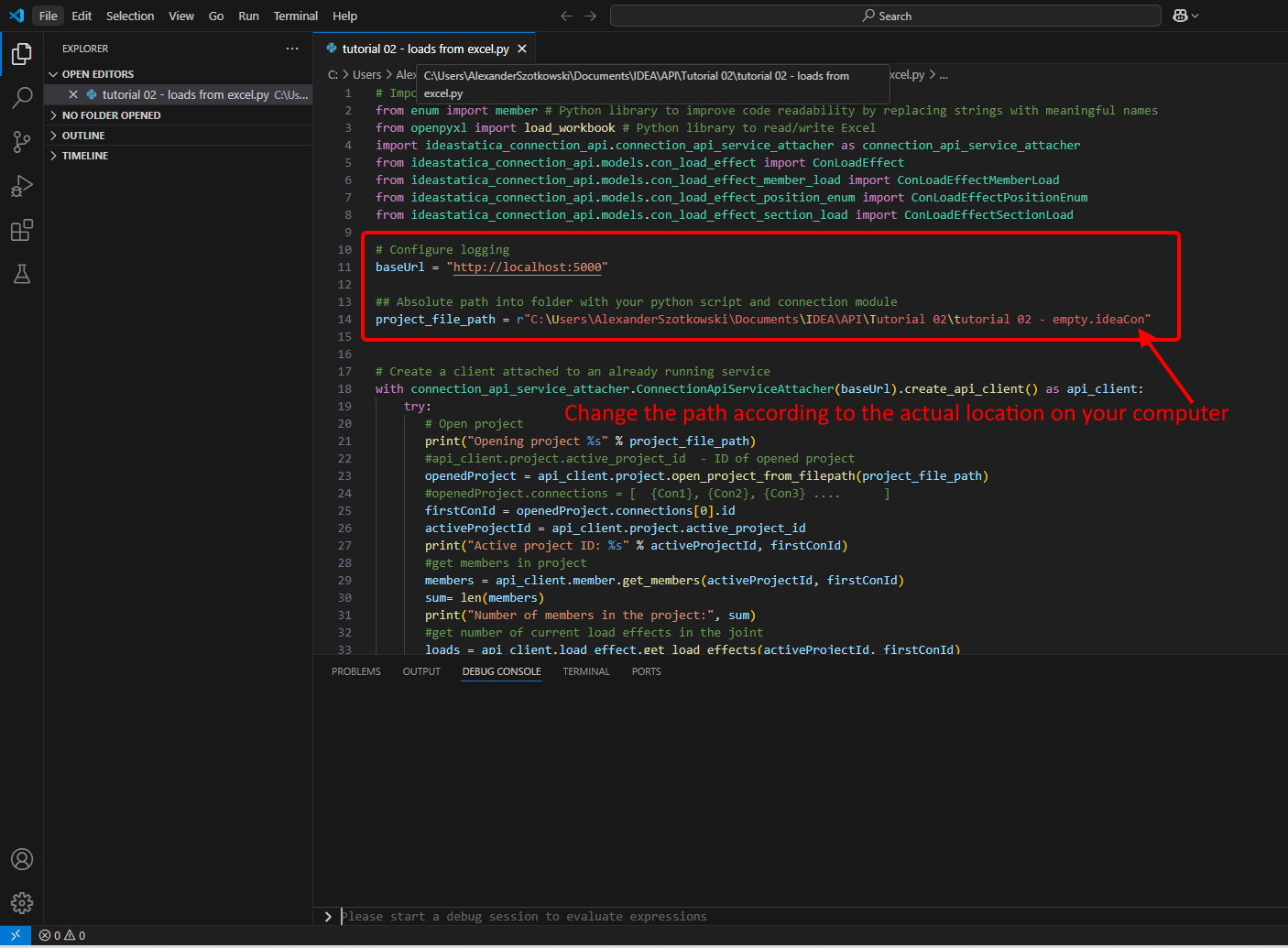
- กำหนดค่า logging ผ่านตัวแปร "baseUrl" ซึ่งจะดึง localhost ของคุณขึ้นมา ในขั้นตอนที่สอง ให้ระบุ absolute path ของไฟล์ IDEA StatiCa Connection ของคุณ
Source code:
## Configure logging
baseUrl = "http://localhost:5000"
## Absolute path into a folder with your python script and connection module
project_file_path = r"C:\Users\*username*\Documents\IDEA\API\Tutorial 02\tutorial 02 - empty.ideaCon"
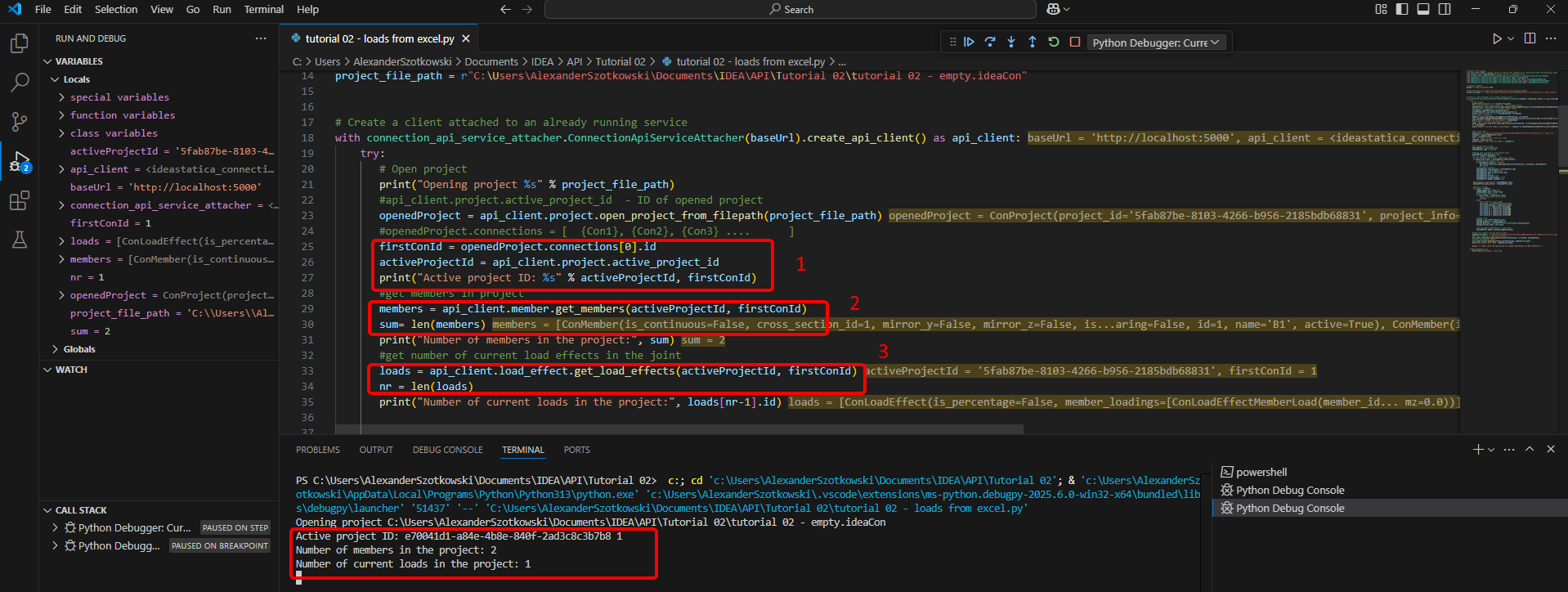
- เชื่อมต่อ client กับ service ที่กำลังทำงานอยู่ ใช้บล็อก try/except - เมื่อบล็อก try เกิดข้อผิดพลาด บล็อก except จะถูกดำเนินการ ในขั้นตอนแรก จำเป็นต้องเปิดโปรเจกต์และค้นหา project ID ของโปรเจกต์ที่ไม่ซ้ำกันสำหรับทุกโปรเจกต์ IDEA StatiCa หากคุณรันสคริปต์ คุณจะสามารถอ่าน path ที่พิมพ์ออกมา, unique ID(1), จำนวนชิ้นส่วนที่เชื่อมต่อ(2) และจำนวนแรงกระทำปัจจุบัน(3)
Source code:
# Create a client attached to an already running service
with connection_api_service_attacher.ConnectionApiServiceAttacher(baseUrl).create_api_client() as api_client:
try:
## Open the project
print("Opening project %s" % project_file_path)
#api_client.project.active_project_id - ID of opened project
openedProject = api_client.project.open_project_from_filepath(project_file_path)
#openedProject.connections = [ {Con1}, {Con2}, {Con3} .... ]
firstConId = openedProject.connections[0].id
activeProjectId = api_client.project.active_project_id
print("Active project ID: %s" % activeProjectId, firstConId)
#get members in project
members = api_client.member.get_members(activeProjectId, firstConId)
sum= len(members)
print("Number of members in the project:", sum)
#get number of current load effects in the joint
loads = api_client.load_effect.get_load_effects(activeProjectId, firstConId)
nr = len(loads)
print("Number of current loads in the project:", loads[nr-1].id)
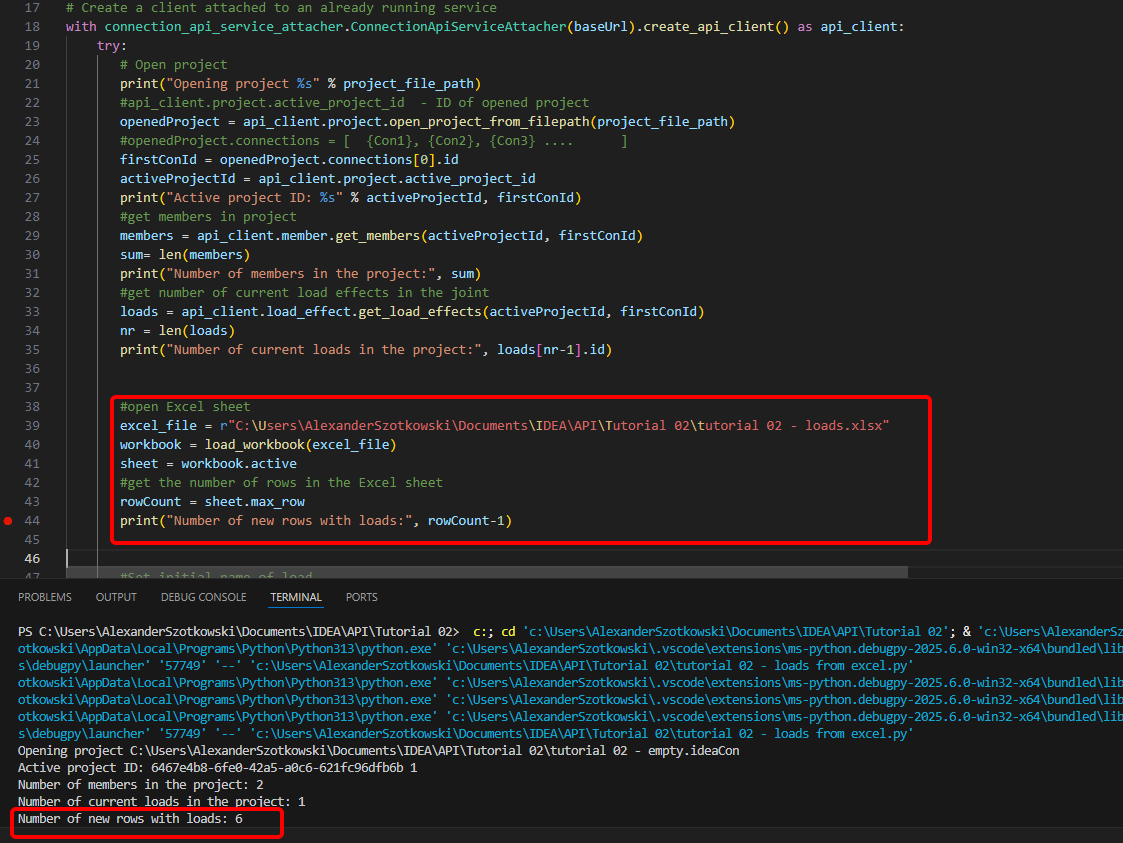
- เปิดตาราง Excel และอ่านจำนวนแถวที่มีแรงกระทำ
Source code:
#open Excel sheet
excel_file = r"C:\Users\*username*\Documents\IDEA\API\Tutorial 02\tutorial 02 - loads.xlsx"
workbook = load_workbook(excel_file)
sheet = workbook.active
#get the number of rows in the Excel sheet
rowCount = sheet.max_row
print("Number of new rows with loads:", rowCount-1)
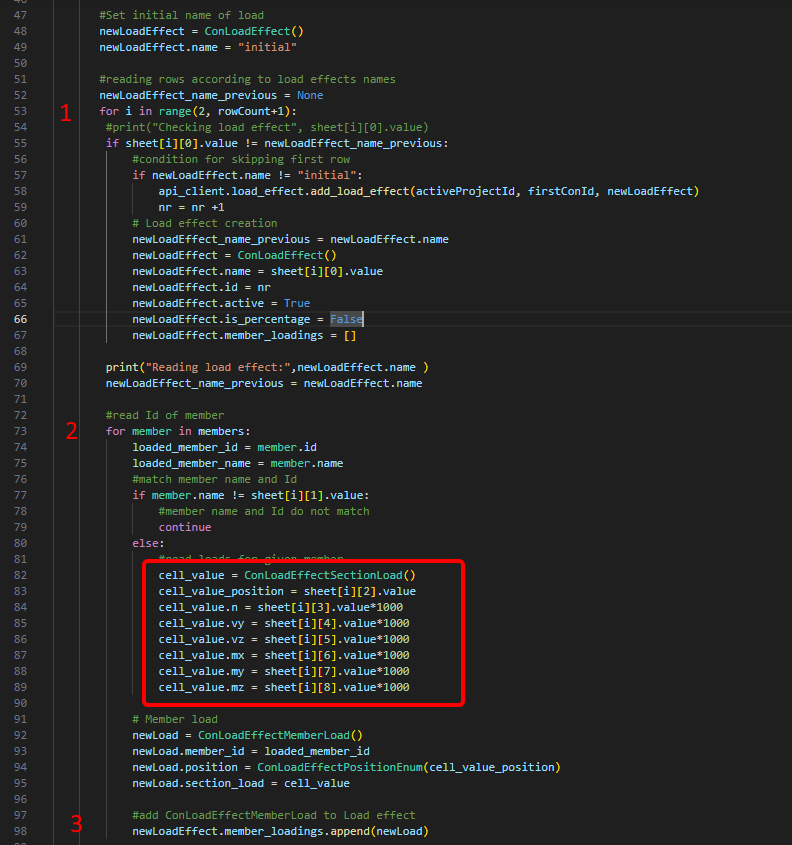
- เริ่มลูปเพื่อตรวจหาแถวที่มีชื่อชุดแรงกระทำเดียวกัน(1) ภายในลูปนี้ จะมีลูปอีกชั้นที่เพิ่มแรงกระทำให้กับแต่ละชิ้นส่วน(2) หลังจากแต่ละลูป จะมีการเพิ่มบรรทัดหนึ่งบรรทัดพร้อมแรงกระทำ(3)
#Set initial name of load
newLoadEffect = ConLoadEffect()
newLoadEffect.name = "initial"
#reading rows according to load effects names
newLoadEffect_name_previous = None
for i in range(2, rowCount+1):
#print("Checking load effect", sheet[i][0].value)
if sheet[i][0].value != newLoadEffect_name_previous:
#condition for skipping first row
if newLoadEffect.name != "initial":
api_client.load_effect.add_load_effect(activeProjectId, firstConId, newLoadEffect)
nr = nr +1
# Load effect creation
newLoadEffect_name_previous = newLoadEffect.name
newLoadEffect = ConLoadEffect()
newLoadEffect.name = sheet[i][0].value
newLoadEffect.id = nr
newLoadEffect.active = True
newLoadEffect.is_percentage = False
newLoadEffect.member_loadings = []
print("Reading load effect:",newLoadEffect.name )
newLoadEffect_name_previous = newLoadEffect.name
#read Id of member
for member in members:
loaded_member_id = member.id
loaded_member_name = member.name
#match member name and Id
if member.name != sheet[i][1].value:
#member name and Id do not match
continue
else:
#read loads for given member
cell_value = ConLoadEffectSectionLoad()
cell_value_position = sheet[i][2].value
cell_value.n = sheet[i][3].value*1000
cell_value.vy = sheet[i][4].value*1000
cell_value.vz = sheet[i][5].value*1000
cell_value.mx = sheet[i][6].value*1000
cell_value.my = sheet[i][7].value*1000
cell_value.mz = sheet[i][8].value*1000
# Member load
newLoad = ConLoadEffectMemberLoad()
newLoad.member_id = loaded_member_id
newLoad.position = ConLoadEffectPositionEnum(cell_value_position)
newLoad.section_load = cell_value
#add ConLoadEffectMemberLoad to Load effect
newLoadEffect.member_loadings.append(newLoad)
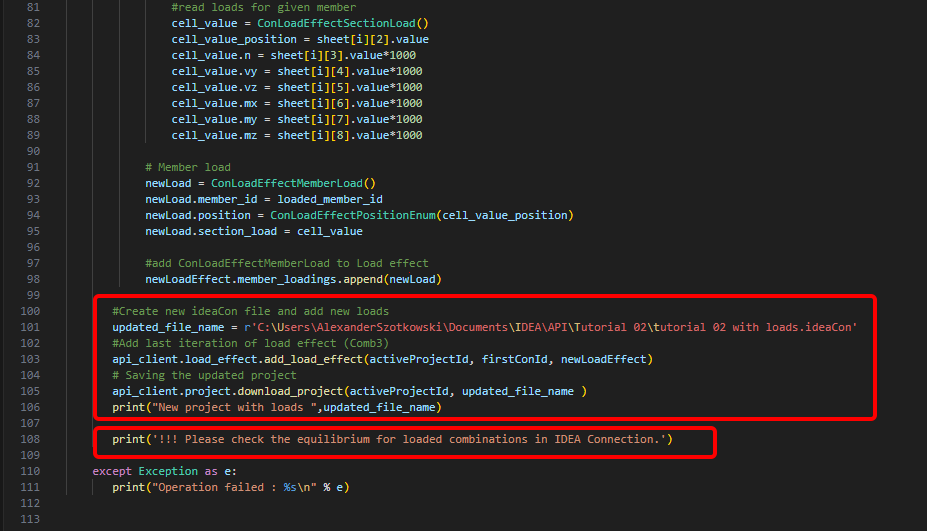
- สร้างไฟล์ใหม่และบันทึกโปรเจกต์ที่อัปเดตพร้อมชุดแรงกระทำที่เพิ่มใหม่ พร้อมเพิ่มหมายเหตุเกี่ยวกับการตรวจสอบสมดุล
Source code:
#Create new ideaCon file and add new loads
updated_file_name = r'C:\Users\AlexanderSzotkowski\Documents\IDEA\API\Tutorial 02\tutorial 02 with loads.ideaCon'
#Add last iteration of load effect (Comb3)
api_client.load_effect.add_load_effect(activeProjectId, firstConId, newLoadEffect)
# Saving the updated project
api_client.project.download_project(activeProjectId, updated_file_name )
print("New project with loads ",updated_file_name)
print('!!! Please check the equilibrium for loaded combinations in IDEA Connection.')
except Exception as e:
print("Operation failed : %s\n" % e)
ขณะนี้คุณสามารถตรวจสอบไฟล์ใหม่เพื่อดูว่าดำเนินการสำเร็จหรือไม่
Attached Downloads
- tutorial 02 - loads from excel.py (PY, 5 kB)
- tutorial 02 - empty.ideaCon (IDEACON, 38 kB)
- tutorial 02 - loads.xlsx (XLSX, 9 kB)