

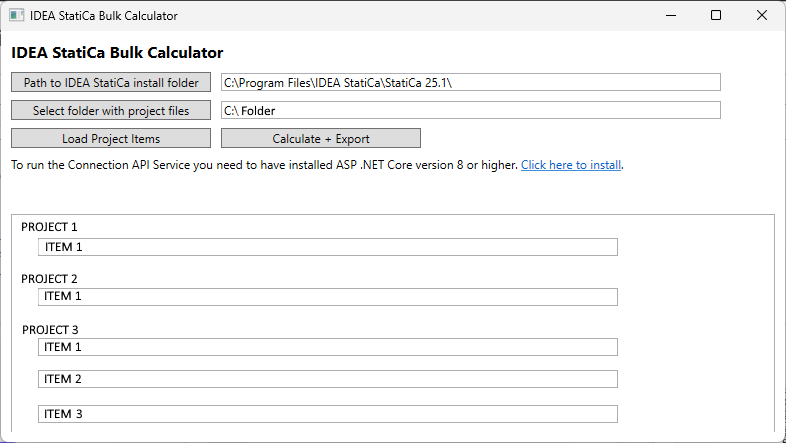
Tömeges számítási eszköz (BETA)
A projektfájlok gyors ellenőrzésének módja
- Töltse le az ellenőrző eszközt innen
- Futtassa a CalculationBulkTool.exe fájlt
Megjegyzés: Az első futtatáskor megjelenhet a Windows Defender figyelmeztetése. Ebben az esetben kövesse az alábbi lépéseket.


- Töltse fel a projektfájlokat tömegesen (Megjegyzés: Az eszköz helyes működéséhez szükséges, hogy .NET 8.0.22 telepítve legyen.)
- Az eszköz sorban kiszámítja az összes projektet
- Ha az analízis elvégezhető, .csv fájl jön létre az eredményekkel.
Lépésről lépésre útmutató
Először válassza ki az IDEA StatiCa telepítési mappájának elérési útját. A tömeges számítóhoz jelenleg használható legrégebbi verzió a 25.1.2.
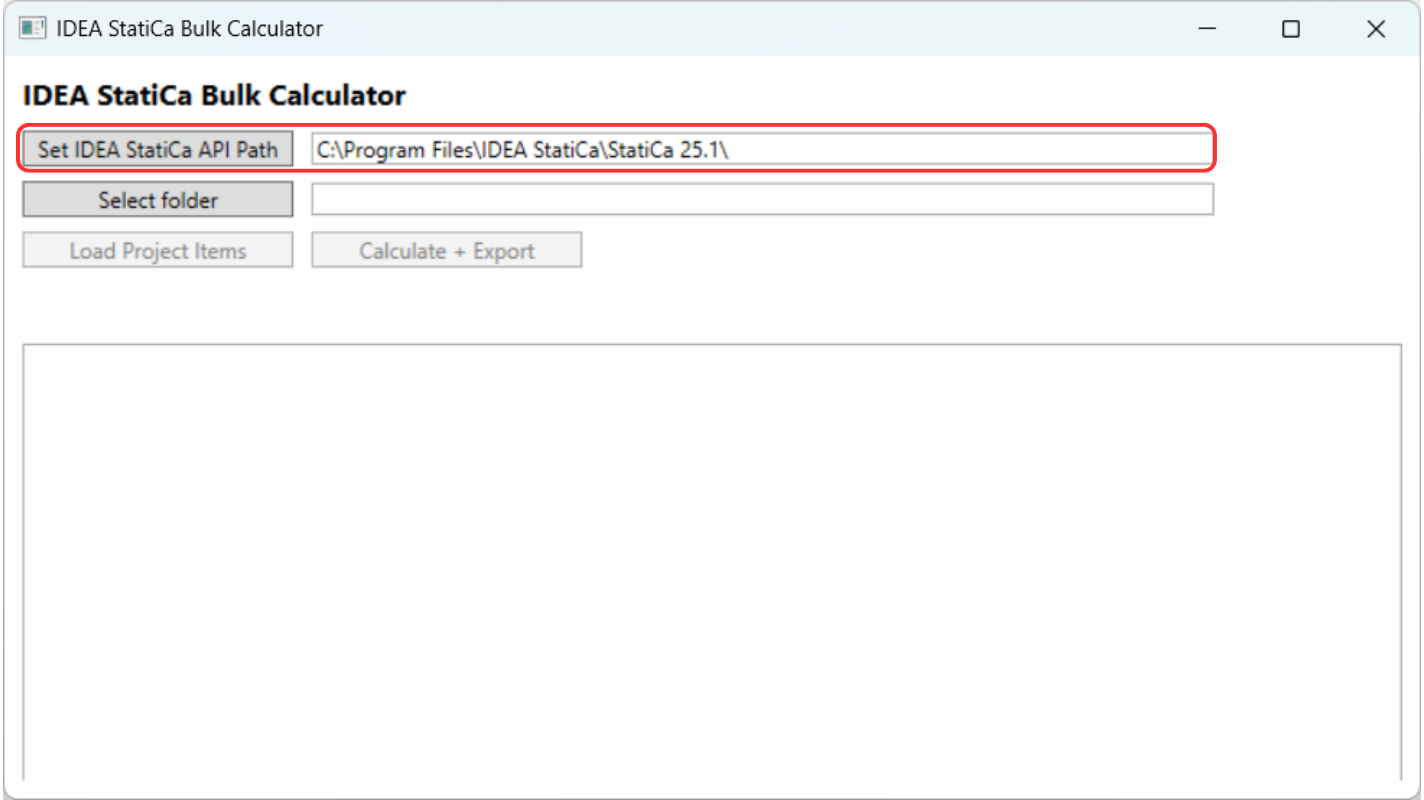
Töltse fel az IDEA StatiCa projektfájlokat tartalmazó mappát. A mappák rekurzívan kerülnek átvizsgálásra, így az almappákban lévő projektfájlok (.ideacon) is szerepelnek.
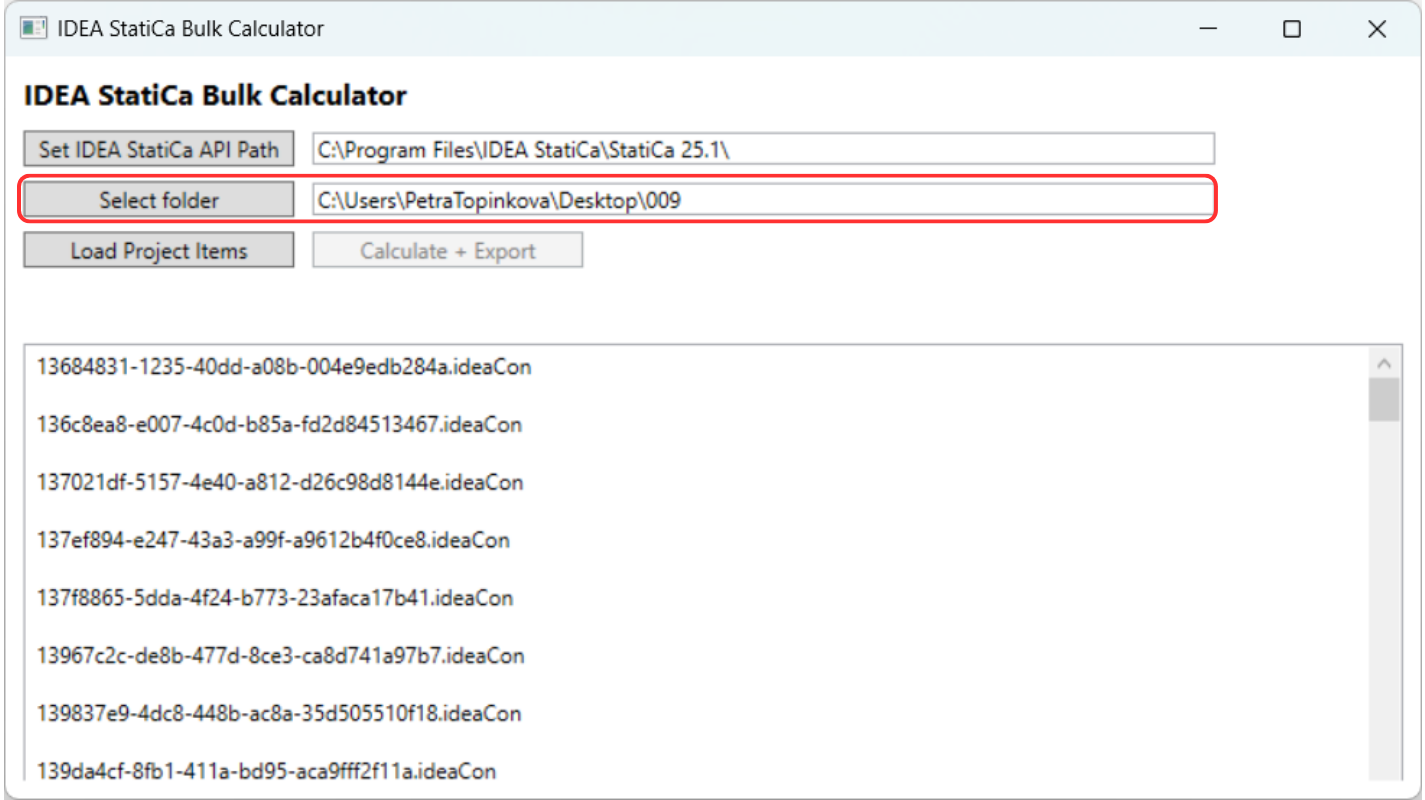
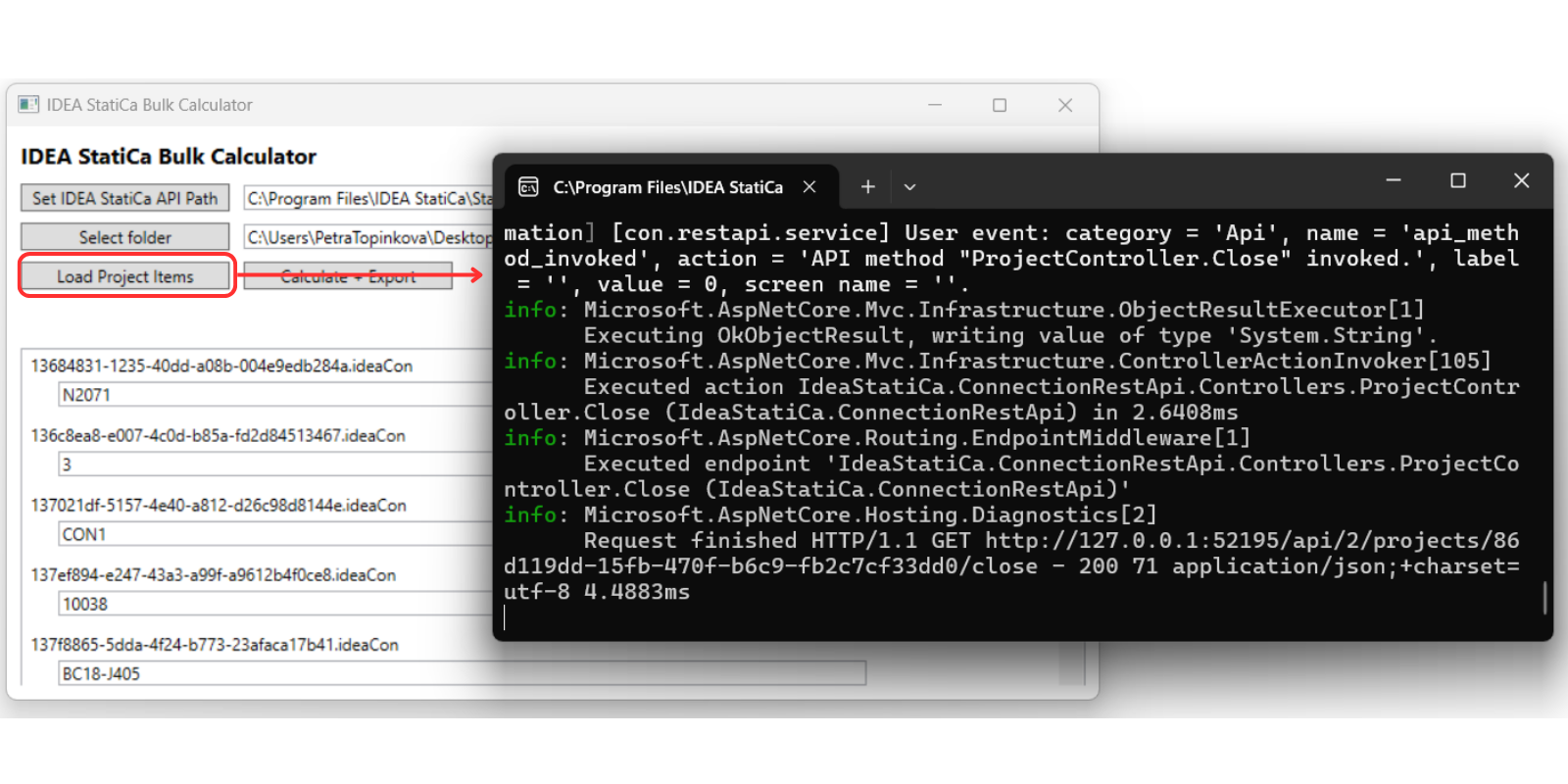
Kattintson a „Load Projects Item" gombra az összes kapcsolat betöltésének megkezdéséhez minden projektből.
Megjegyzés: Az algoritmus indítása előtt néhány másodpercre megjelenik a parancssor fekete ablaka – ne zárja be ezt az ablakot, amíg a teljes analízis be nem fejeződik.
Miután a projektek betöltődtek, kattintson a „Calculate and Export" gombra. A számítás a háttérben fut.
Kérjük, vegye figyelembe, hogy nagyszámú kapcsolat feldolgozása időt vehet igénybe, a modell összetettségétől, a teherkombinációk számától stb. függően. Például egy kapcsolat feldolgozása körülbelül 5 percet vehet igénybe.
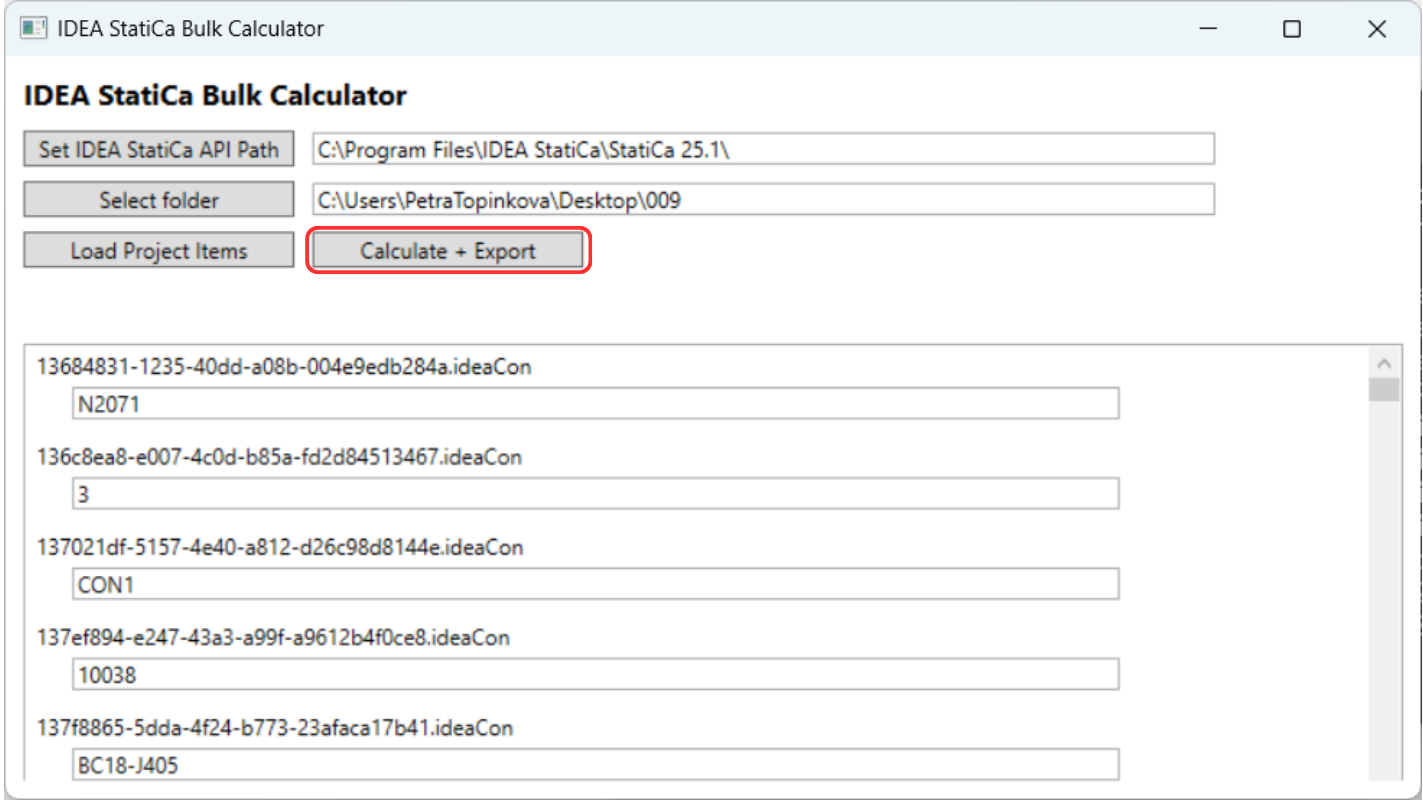
A .csv fájl az elemzett projektfájlokkal azonos mappában jön létre. A számítás befejezésekor egy táblázat jelenik meg, amely mutatja a számítások sikeres elvégzését.

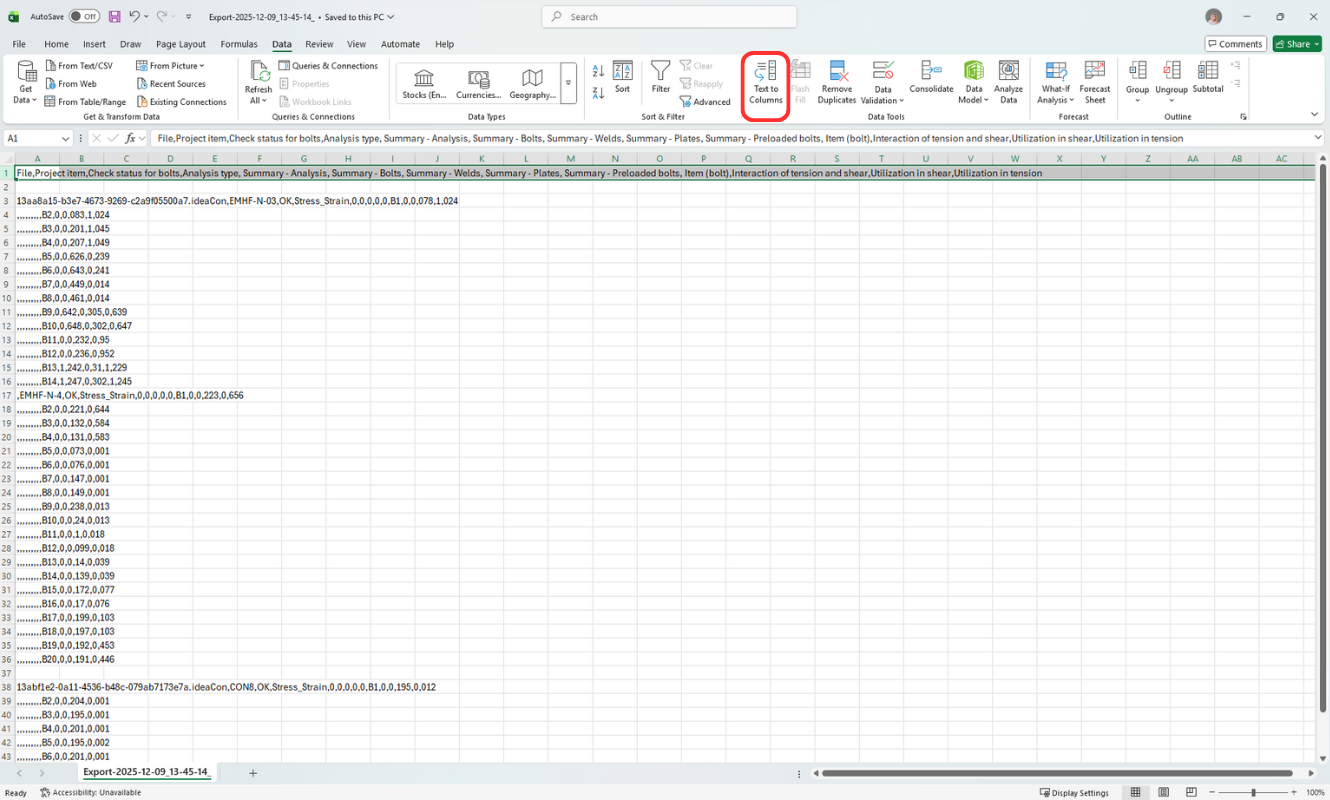
A .csv fájl tartalmazza a hegesztések, lemezek és csavarok kihasználtságának összesített eredményeit. Először azonban szükséges a táblázat módosítása az egyszerű olvashatóság érdekében.
1. Ossza fel az értékeket egyedi oszlopokra. Jelölje ki az első sort, és használja a Szöveg oszlopokba lehetőséget.
2. Most kiértékelheti az eredményeket. Például a csavarok interakciós kihasználtsága – szűrő hozzáadásával az első sorhoz és a 0 értékű sorok elrejtésével, vagy feltételes formázással az egynél nagyobb értékek kiemelésére.
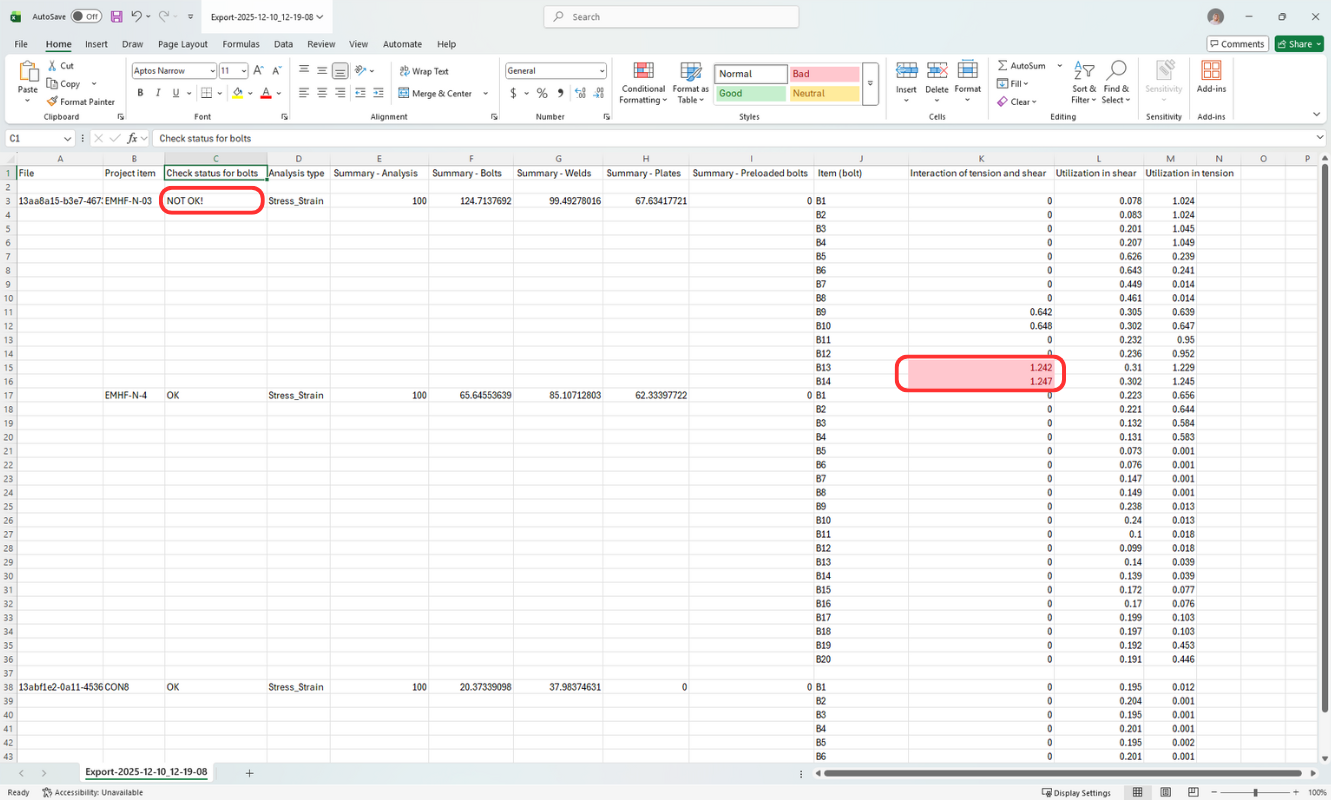
A kép egy olyan projekt összesített állapotát mutatja, amely nem felel meg a követelményeknek, a következő oszlop pedig jelzi az adott meghibásodó csavarokat.
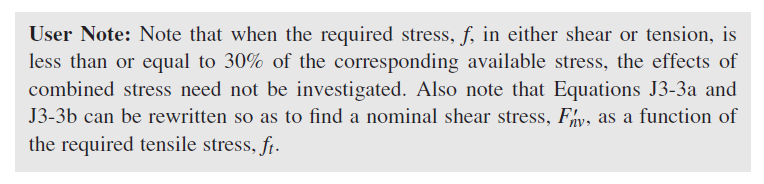
Megjegyzés: Ha a nyírási vagy húzási kihasználtság 0,3 alatt van, az interakció figyelmen kívül marad és 0-ként kerül rögzítésre. (az AISC 360-22 J3.8 szerint)
3. Ha voltak sikertelen analízissel rendelkező projektelemek, a projekt mappájában szöveges fájl is létrejön (FailedProjects-time_stamp.txt), amely megadja a projekt és a projektelem nevét.
A sikertelen analízis tipikus okai:
- Hiányzó terhelés
- Szingularitások
- Modellezési problémák – elemek ütközése
(Alapvetően ugyanazok az okok, amelyek miatt az asztali alkalmazásban sem indulna el a számítás)
Csatolt letöltések
- CalculationBulkTool.zip (ZIP, 64,2 MB)